 Fluxx Tech
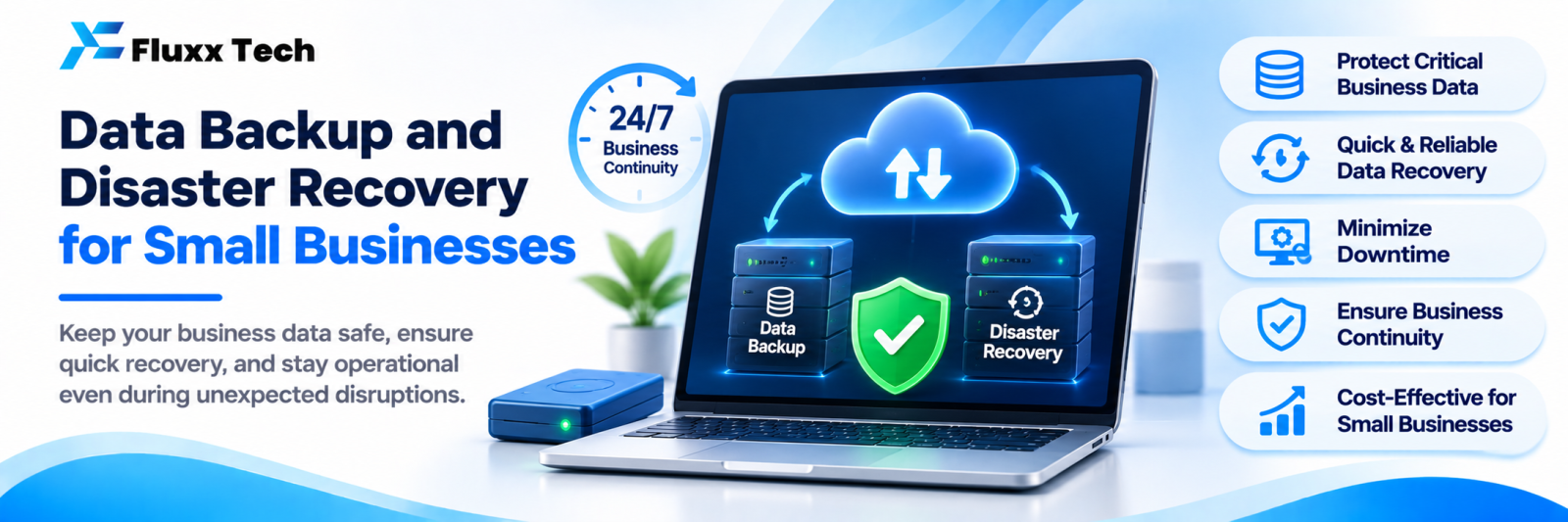
Most small businesses discover their backup was not working on the day they need it. The server dies, a laptop is stolen, a staff member deletes a folder, or ransomware encrypts everything, and the backup turns out to be six months old or stored on the same machine that failed.
Backup is cheap. Losing your data is not.
What needs backing up
• Website files and database
• Accounting data: Tally or other software
• Billing and POS data
• Customer records and CRM
• Documents, designs, contracts, photographs
• Software code and configuration
• Cloud app data, which is not automatically yours to restore
Write the list down. Most businesses find something nobody was backing up.
The 3-2-1 rule
• 3 copies of your data
• 2 different types of storage
• 1 copy off-site
Example for a small business: live data on the server, an automatic copy to an external drive, and an automatic copy to cloud storage.
A backup on the same computer as the original is not a backup. A backup on a drive that stays permanently connected can be encrypted by ransomware along with everything else.
Two numbers to decide
RPO (Recovery Point Objective): how much data can you afford to lose? If you back up nightly, you could lose a day’s work. For billing data that may be unacceptable, so back up more often.
RTO (Recovery Time Objective): how long can you be down? If your website being down for two days costs serious money, you need a faster restore path than downloading files and rebuilding a server by hand.
Different data deserves different answers. Accounting and billing usually need tighter RPO than marketing files.
Automate it
Manual backups get skipped. Whatever you use:
• Schedule it
• Make it run without anyone remembering
• Get a success or failure notification
• Check the notification; a silent failure for three months is common
Protect against ransomware
• Keep at least one backup copy offline or immutable, so it cannot be overwritten
• Keep version history, so you can restore from before the infection
• Restrict who can delete backups
• Keep operating systems and software updated
Test restores
This is the step everyone skips. A backup you have never restored is a hope, not a plan.
• Restore a file every month
• Restore a full system or database at least twice a year
• Time it, so you know your real RTO
• Document the steps, so someone other than one person can do it
Also plan for
• Account access. If the one person with the hosting and domain passwords is unavailable, can the business continue? Keep credentials in a password manager with controlled access.
• Domain renewal. Expired domains take sites down; keep auto-renew on and contact details current.
• Hardware failure. Know what you would do if the main office computer or server died tomorrow.
• Staff exit. Make sure data and accounts are not tied to a personal email.
A simple checklist
• ☐ Full list of data and where it lives
• ☐ Backup schedule for each type
• ☐ One off-site copy
• ☐ One offline or immutable copy
• ☐ Automatic, with failure alerts
• ☐ Monthly file restore test
• ☐ Twice-yearly full restore test
• ☐ Written recovery steps
• ☐ Credentials in a password manager
• ☐ Two people who know the process
Frequently asked questions
Is my website host’s backup enough? Host backups are useful but often limited in retention, and they are on the same provider. Keep your own copy as well.
Is cloud storage a backup? Syncing is not backup. If a file is deleted or encrypted locally, sync can propagate that. Use versioning and a separate backup copy.
How much does backup cost? For most small businesses, cloud backup storage costs far less than one day of downtime.