 Fluxx Tech
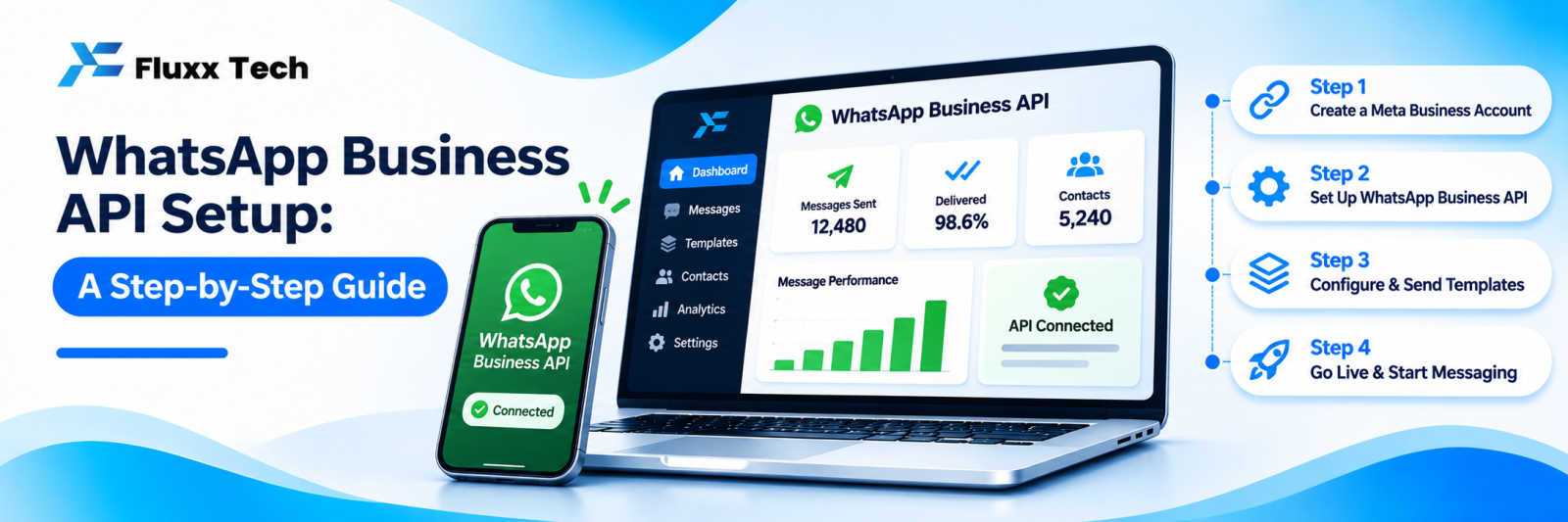
The free WhatsApp Business app works until a second person needs to reply. Then you need the WhatsApp Business Platform, usually called the API, which allows a team, automation, templates and reporting.
Setting it up is not hard, but it has prerequisites that catch people out, and one irreversible decision about your phone number.
Meta changes these requirements regularly. Check Meta’s current WhatsApp Business Platform documentation before starting, and treat the steps below as the shape of the process rather than a fixed checklist.
What you need before you start
Requirement | Notes |
A registered business | With documents matching the name you want to display |
A Meta Business account | Also called Business Manager |
Business verification | Document-based; allow time for it |
A phone number | Not currently active on WhatsApp or WhatsApp Business, or ready to be migrated |
A display name | Must relate to your real business name |
A website | With your business name, contact details and policies visible |
A provider | A Business Solution Provider, or direct via Meta’s platform |
The phone number decision
The most important and least reversible step.
Option A: a new number. Clean, no migration risk. But your existing customers message the old number, so you must redirect them, and that takes months of effort.
Option B: migrate your existing number. Keeps your customer base and chat continuity. The catch: once a number is on the API, it cannot be used in the regular WhatsApp or WhatsApp Business app on a phone. No more replying from a handset. Your team replies through the platform’s inbox instead.
Also note that migrating usually loses your existing chat history on that number; export what you need first.
Advice: most established businesses should migrate their known number, having prepared the team for the change. Businesses whose WhatsApp is also someone’s personal line should use a new number.
The steps
1. Create a Meta Business account with your real business details
2. Submit business verification documents: registration certificate, GST, address proof and whatever Meta currently requests
3. Choose a provider, or go direct, and connect it to your Business account
4. Add the phone number and complete OTP verification, after deleting the number from the WhatsApp app if it was in use
5. Set the display name, following Meta’s naming rules
6. Complete the profile: logo, description, address, email, website, category
7. Submit your first message templates for approval
8. Connect your inbox tool and add your team
9. Test every flow before announcing the change
10. Tell your customers nothing changes at their end, if you migrated
Messaging limits and quality
New numbers start with a limit on how many unique customers you can message in a day. The limit increases as you send good-quality messages and customers do not block you.
Quality rating is driven by blocks and reports. It can fall quickly if you broadcast to people who did not ask for messages, and a low rating reduces your limits or restricts messaging entirely.
Practical implication: do not launch your new API number with a bulk marketing blast. Warm it up with genuine conversations and transactional messages first.
Common reasons setup gets rejected or stuck
• Business documents do not match the business name submitted
• Display name does not relate to the legal business name
• Website missing contact details or policy pages
• The phone number is still active on WhatsApp somewhere
• An unreachable OTP number, often a landline without call reception set up
• The business category is restricted under Meta’s commerce or messaging policies
• Incomplete Business Manager profile
Fix the website first. A thin site with no address, no contact page and no privacy policy is a common cause of delay.
After setup
• Add your team to the shared inbox, with roles
• Build keyword automation for the top questions
• Set working hours and away messages
• Submit templates for the messages you will send regularly
• Set up opt-in capture at every entry point
• Connect Instagram too, so both channels sit in one inbox. See our omnichannel guide
What it costs
Two separate costs:
1. Meta’s conversation or message charges, which vary by category and change periodically
2. Your provider or platform fee, monthly or per user
Ask for both in writing at your expected volume. A low platform fee with high per-message markup can be the more expensive option.
Frequently asked questions
Can I still use WhatsApp on my phone after migrating? Not with that number in the regular app. Your team replies through the platform inbox, which can be used on phones and desktops.
How long does setup take? Often a few days once documents are ready; business verification is usually the slowest part.
Can I go back to the WhatsApp Business app later? A number can be removed from the platform, but treat it as disruptive. Decide properly at the start.